WordPress update problems can appear after updating the WordPress core software, a plugin, a theme, PHP, or another part of the website environment. Most updates are routine, but business websites often rely on several components that need to remain compatible with one another.
WordPress Update Problems Usually Involve Compatibility or Configuration
WordPress websites are built from more than the core platform. Plugins add functionality, themes control presentation, PHP runs much of the application code, and hosting provides the server environment where everything operates.
An update to one component can expose a conflict with another. Problems can range from a small layout issue to a broken form, missing functionality, a critical error, or an unavailable website.
Businesses do not need to avoid updates. Instead, they should have a process for backing up, checking compatibility, testing important functionality, and recovering if something goes wrong.

1. Why Does WordPress Need Updates?
WordPress, themes, and plugins receive updates for many reasons. Updates may fix bugs, improve security, add features, improve compatibility, or support newer technologies.
Leaving software outdated indefinitely can create its own problems. Older components may stop receiving support or become incompatible with newer versions of WordPress, PHP, browsers, or other plugins.
The goal should not be to avoid updates. A better approach is to manage them carefully.
Professional website hosting and management can include routine maintenance, monitoring, backups, and technical support alongside the hosting environment.
2. Plugins Can Become Incompatible After an Update
Plugins extend WordPress with features such as forms, ecommerce, SEO tools, security controls, page builders, analytics, and many other functions.
Because plugins interact with WordPress and sometimes with one another, compatibility matters.
WordPress's plugin documentation includes fields that developers can use to specify minimum WordPress and PHP requirements.
Problems may appear when a plugin expects a newer version of PHP or WordPress, uses code that another update changed, or conflicts with another active plugin.
3. Themes Can Also Cause WordPress Update Problems
WordPress themes can contain much more than visual styling. Depending on the site, a theme may include templates, custom functions, scripts, page-builder integrations, and other features.
A theme update can expose compatibility problems with plugins, custom code, or older templates.
Businesses using heavily customized themes should know which modifications belong to the original theme and which were added specifically for their website.
Direct modifications to core theme files can also be overwritten by theme updates if those changes were not implemented in an update-safe way.
4. PHP Compatibility Can Affect WordPress Websites
PHP is the programming language that powers much of WordPress. The PHP version is normally controlled at the hosting or server level.
Plugins and themes may require certain PHP versions, and older code may not behave correctly on a newer environment.
WordPress's PHP update guidance recommends creating a backup, updating WordPress and its components, and checking compatibility before changing PHP versions.
PHP changes should be treated as part of website maintenance rather than an isolated server setting.
5. Custom Code May Not Be Compatible With New Versions
Business websites often include custom PHP, JavaScript, CSS, functions, snippets, integrations, or template modifications.
Custom code may depend on behavior that changes after an update. A plugin or WordPress core update can reveal a problem that was not visible before.
This is especially important for websites that have been modified by several developers over many years.
Businesses should keep track of important customizations so they can be checked when major software changes are planned.
6. Updating Several Components at Once Makes Troubleshooting Harder
Updating WordPress, ten plugins, a theme, and PHP at the same time may seem efficient, but it can make a failure harder to diagnose.
If the website breaks afterward, there may be several possible causes.
A more controlled maintenance process makes it easier to identify which change introduced the problem.
There is no single update order that works for every WordPress website. The official WordPress update documentation recommends checking plugin and theme compatibility and reviewing update notes when the correct sequence is unclear.
7. Create a Backup Before Important Updates
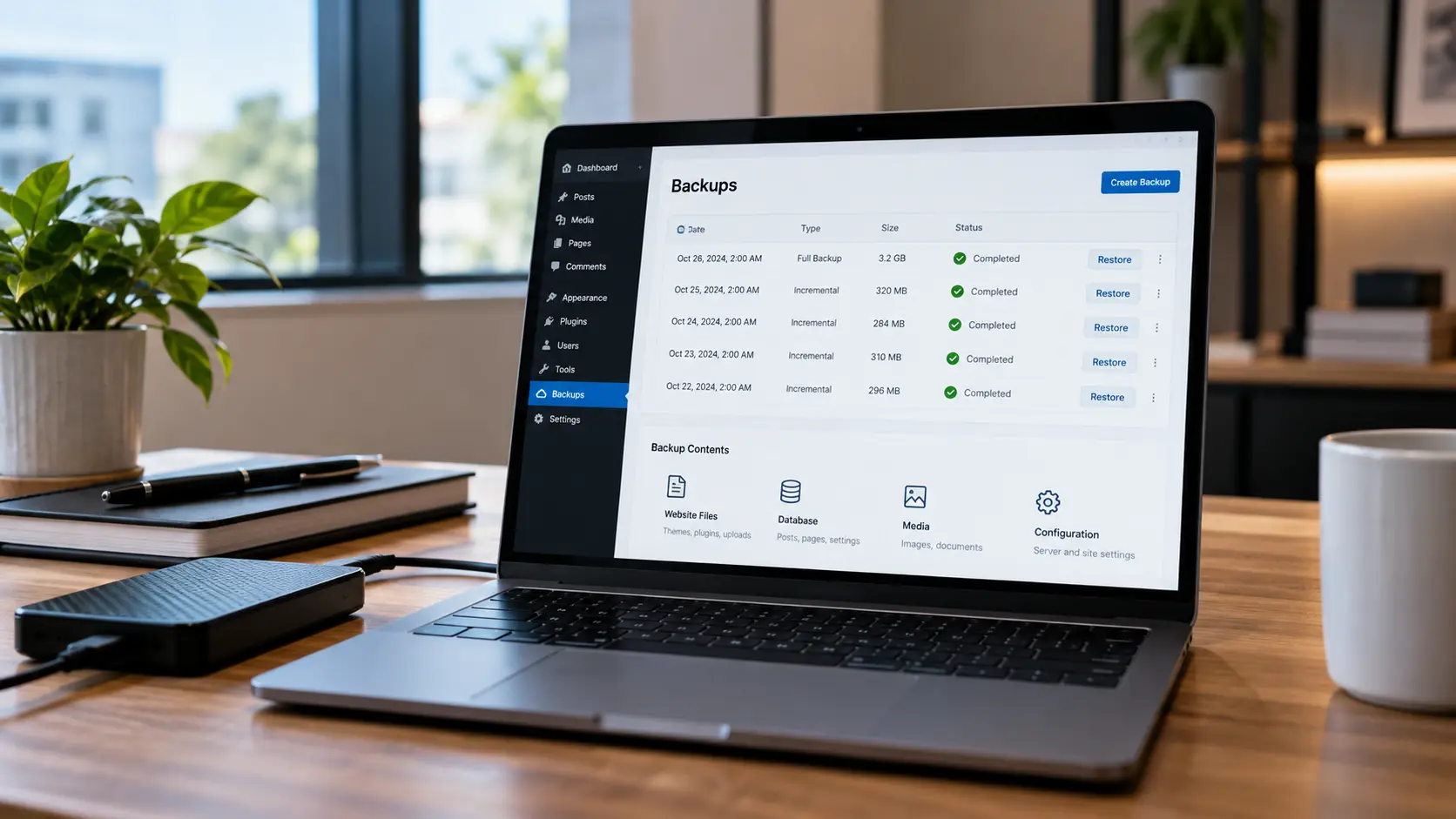
A current backup gives the business a recovery option if an update causes a serious issue.
The backup should include the components needed to restore the working website, commonly including:
- Website files
- Database content
- Plugins
- Themes
- Uploaded media
- Configuration files
- Custom code
WordPress recommends backing up before updating core software, themes, or plugins.
Our guide to website backup and recovery explains what businesses should check about backup frequency, retention, storage, and restore testing.
8. A Backup Is More Useful When It Has Been Tested
Seeing a backup listed in a dashboard does not prove that every part of the website can be restored successfully.
A restore may depend on files, database content, credentials, server settings, and other technical details.
Businesses should know how their restore process works before an emergency occurs.
This is particularly important for websites that generate leads, accept transactions, or support important daily operations.
9. Check Plugin and Theme Compatibility Before Updating
Before a major WordPress update, review the plugins and themes that the website depends on.
Check:
- Whether updates are available
- Whether the component is still actively maintained
- Minimum WordPress requirements
- Minimum PHP requirements
- Recent update notes
- Known compatibility information
WordPress itself checks certain declared WordPress and PHP requirements when plugins are installed or updated.
Still, technical compatibility requirements do not guarantee that every combination of plugins, themes, and custom code will behave exactly as expected.
10. Check WordPress Site Health
WordPress includes a Site Health area that can identify technical conditions worth reviewing.
It can provide information about areas such as:
- Outdated plugins
- Outdated themes
- PHP versions
- Scheduled events
- REST API availability
- Server configuration
- Security and performance recommendations
The WordPress Site Health screen can provide useful information before and after maintenance.
11. Test Updates Away From the Live Website When Possible
A staging environment is a separate copy of the website used for testing changes before they reach visitors.
Testing updates on staging can help reveal:
- Plugin conflicts
- Broken layouts
- PHP errors
- Form problems
- Checkout issues
- Custom-code failures
- Mobile display problems
A staging test cannot reproduce every production condition, but it provides an extra layer of protection for important business websites.
12. Test More Than the Homepage After Updates
A website can appear normal on the homepage while important functions are broken elsewhere.
After updates, test areas such as:
- Navigation menus
- Contact forms
- Service pages
- Search
- Login areas
- Ecommerce checkout
- Payment integrations
- Mobile layouts
- Third-party integrations
Our article on website contact form optimization explains why form functionality deserves particular attention when checking a business website.
13. Clear Website and Browser Caches After Updates
Caching can sometimes make an updated website appear broken even when the underlying update completed correctly.
Old CSS, JavaScript, pages, or other cached resources may continue appearing until caches refresh.
After important updates, businesses may need to clear:
- WordPress caching plugins
- Server-side caching
- CDN caching
- Browser caching
WordPress's update documentation also recommends clearing caches after an update so visitors receive the current version of the site.
14. WordPress May Enter Maintenance Mode During an Update
WordPress temporarily places a site into maintenance mode while certain updates are running.
Visitors may briefly see a maintenance message while files are being changed.
Normally, WordPress removes maintenance mode automatically after the update finishes.
If an update fails and the website remains stuck in maintenance mode, additional troubleshooting may be required.
15. What Is WordPress Recovery Mode?
WordPress includes a built-in Recovery Mode designed to help administrators regain access when certain fatal PHP errors occur.
According to the WordPress Recovery Mode documentation , fatal errors commonly come from faulty plugins, themes, or custom code.
Recovery Mode can temporarily pause the problematic component for the administrator's session so the site can be investigated.
It is a troubleshooting feature rather than a replacement for backups or regular website maintenance.
16. Automatic Updates Still Need Monitoring
WordPress supports automatic updates for various components, including plugin and theme updates when those options are enabled.
Automation can reduce the risk of software remaining outdated for long periods, but it does not eliminate compatibility concerns.
A business website should still be monitored so unexpected changes are discovered quickly.
WordPress's plugin management documentation also recommends having a current backup before plugin updates.
17. Old or Abandoned Plugins Create Additional Risk
A plugin that has not been maintained for a long period may become increasingly difficult to use with newer WordPress or PHP versions.
Businesses should periodically review whether installed plugins are still necessary and actively maintained.
Removing unused software can simplify website maintenance and reduce the number of components that need to remain compatible.
This review is also useful when planning broader website security improvements.
18. Hosting Configuration Can Influence Update Problems
WordPress does not operate independently of its server environment.
PHP versions, memory limits, file permissions, database software, storage, security rules, and server configuration can all influence whether an update completes successfully.
Some failed WordPress updates are related to filesystem permissions rather than the update package itself.
This is one reason managed WordPress hosting and ongoing technical maintenance can be valuable for business sites.
19. Website Speed Should Be Checked After Major Changes
An update may change scripts, stylesheets, database behavior, caching, or other resources that affect performance.
After larger updates, check important pages for unexpected slowdowns.
Our guide to factors affecting website speed covers hosting, images, scripts, caching, fonts, and other factors that can influence loading performance.
20. Have a Recovery Plan Before Starting Maintenance
A business should know what happens if an update causes a serious problem.
A basic recovery plan should identify:
- Where the latest backup is stored
- Who can restore the website
- How to access hosting
- How to access WordPress
- Who manages DNS if needed
- How the website will be tested after recovery
- Who should be contacted if the site remains unavailable
The more important the website is to daily business operations, the more important it becomes to document these steps.
WordPress Update Checklist for Business Websites
Before Updating
- Create a current website backup
- Confirm the backup can be accessed
- Review pending WordPress, plugin, and theme updates
- Check WordPress and PHP requirements
- Review Site Health
- Document important custom code or integrations
- Use staging for higher-risk changes when possible
After Updating
- Check the homepage and important service pages
- Test navigation
- Submit contact forms
- Test login or ecommerce functions if applicable
- Check desktop and mobile layouts
- Clear relevant caches
- Check for error messages
- Review website speed
When Professional WordPress Maintenance Services Make Sense
Small websites with simple configurations may be manageable internally. Maintenance becomes more complicated when the website contains many plugins, custom functionality, ecommerce, integrations, or important lead-generation features.
Professional WordPress maintenance services or WordPress support services may be useful when:
- The website has many plugins or custom features
- No one consistently monitors updates
- The business does not have tested backups
- Updates have broken the website before
- The site generates important leads or sales
- The business does not have an internal technical team
- PHP or hosting changes need to be coordinated
- Downtime could affect customers or revenue
Professional website management can combine backups, updates, monitoring, troubleshooting, hosting, security, and technical support under a consistent maintenance process.
WordPress Update Problems Are Easier to Manage With Preparation
WordPress updates are a normal part of maintaining a website. Problems usually become more difficult when changes are made without a current backup, compatibility checks, testing, or a recovery plan.
Understanding the relationship between WordPress core, plugins, themes, PHP, custom code, and hosting can help businesses approach updates more carefully.
A structured process for managing WordPress update problems can reduce unnecessary downtime and make it easier to recover when an unexpected issue appears.
Need Help Maintaining Your WordPress Website?
If updates, plugins, backups, hosting, or technical issues are becoming difficult to manage, a consistent maintenance process can help keep your business website more reliable.
Zen Web Services can help with WordPress maintenance, hosting, backups, updates, troubleshooting, performance, security, and ongoing website management.
Request a Free Website Assessment